SSD Fresh review with a no-magic benchmark approach.Use software only when it fits the real bottleneck.

SSD Fresh review

SSD Fresh is worth a look only if you want guided SSD upkeep, not a miracle speed fix.

This review turns Abelssoft SSD Fresh into a practical buying decision: what it does, what it cannot fix, how to benchmark it, and which alternatives to consider before clicking the offer.

Affiliate disclosure: ShopTrendFinds may earn a commission if you buy through sponsored links, at no extra cost to you. We do not claim guaranteed speed gains, longer SSD life, data-loss prevention, or hardware repair.

Last verifiedJuly 15, 2026 against the current Abelssoft product page.
Evidence levelFeature and license analysis; no proprietary ShopTrendFinds lab benchmark yet.
Editorial ruleVendor claims are labeled as claims, and speed changes require repeatable before-and-after tests.

Decision gate

Click the SSD Fresh offer only if the problem matches the tool.

The best buyer is not looking for a miracle speed fix. The best buyer wants a guided Windows SSD maintenance check, clearer drive-health visibility, and a lower-friction step before considering new hardware.

Sponsored button: ShopTrendFinds may earn a commission. Confirm current version, license terms, OS support, refund rules, and included features on the destination page before buying.

Click ifYou want one guided place for SSD condition, temperature, S.M.A.R.T. signals, write activity, and maintenance settings.
Pause ifThe PC is slow because of low RAM, overheating, malware, full storage, failing hardware, or heavy background apps.
Measure afterRecord baseline notes first, then compare the same speed or health checks after any change so the result is not guesswork.

Verified product facts

What the current SSD Fresh 2026 page actually lists.

These details were checked on July 15, 2026. Price and promotions are deliberately omitted because they can change without notice.

ItemCurrent informationBuyer interpretation
Version2026.15.05Confirm the destination page still shows this version before purchase.
Windows supportWindows 7, 8, 8.1, 10, and 11 are listed.Older Windows versions are end-of-support; software compatibility is not the same as operating-system security.
Core functionsCondition monitoring, temperature, S.M.A.R.T. analysis, write-activity analysis, and guided system settings.Useful for visibility and convenience, not proof of a universal speed gain.
Free/trial limitsDonation screens and no background guard.Use the free download to inspect fit before paying for convenience features.
Plus benefitsAt least six months of updates/new versions, email support, and no advertising.Verify the current license and update period; do not assume lifetime upgrades.

Source: official Abelssoft SSD Fresh product page. ShopTrendFinds is not the software developer.

Quick verdict

Abelssoft SSD Fresh 2026, reviewed as a decision tool.

SSD Fresh fits Windows users who want one guided place to review SSD-related health, temperature, write activity, S.M.A.R.T. information, and maintenance settings.

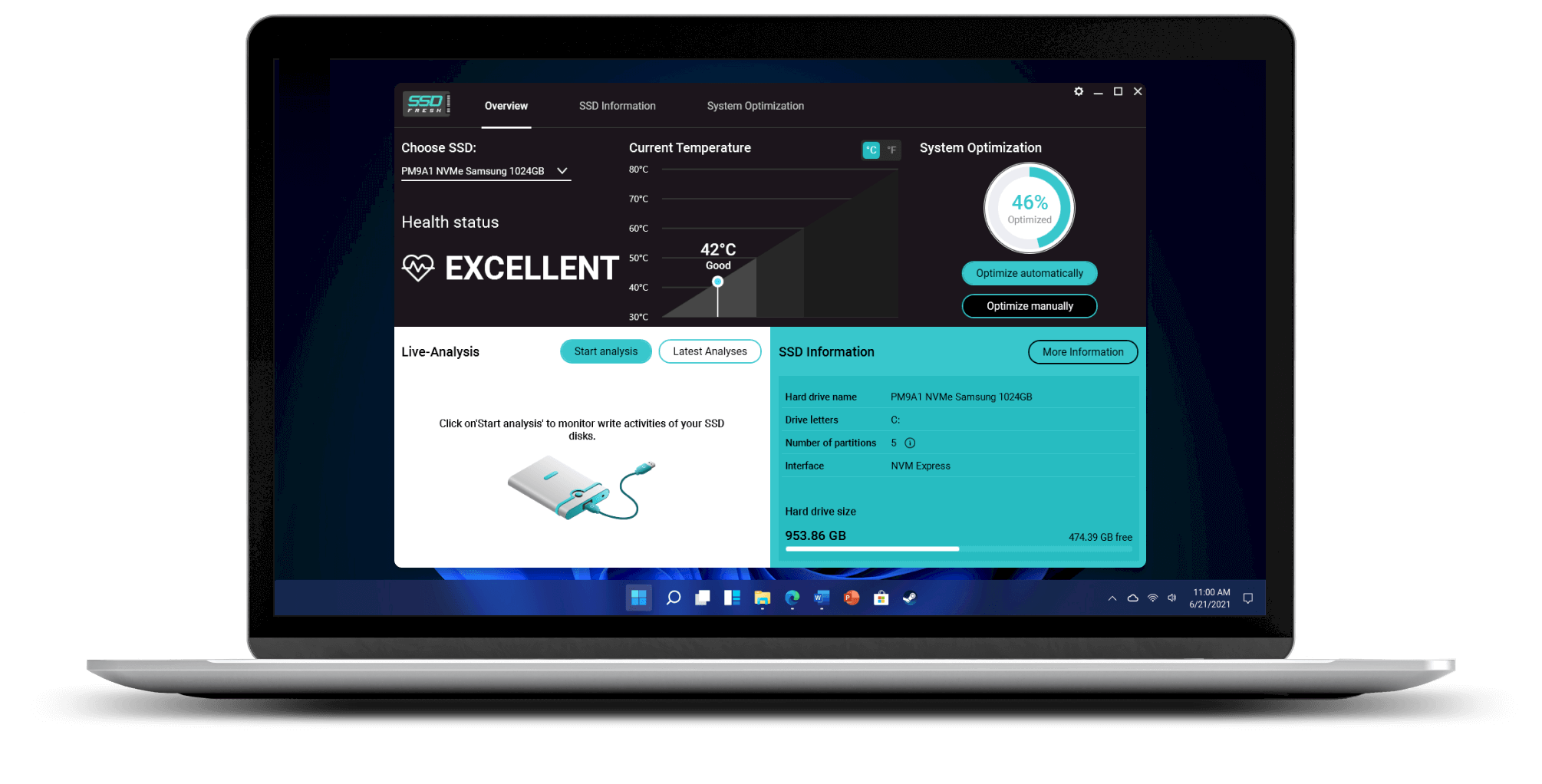
Official SSD Fresh dashboard showing health status, temperature, optimization status, and drive information

Official Abelssoft product screenshot used for interface analysis. It is not a ShopTrendFinds benchmark result.

The official Abelssoft page describes SSD Fresh as an SSD optimization and monitoring utility with one-click system optimization, temperature display, S.M.A.R.T. analysis, write-activity review, and real-time condition information. Those are useful buyer signals, but they should be read as maintenance claims, not as a promise that every PC becomes faster.

Best fitWeak fit
Windows users who want a guided SSD health and settings review. Users expecting guaranteed benchmark gains or gaming FPS improvements.
People trying a lower-friction software check before buying new hardware. PCs slowed by too little RAM, overheating, malware, full storage, or failing hardware.
Buyers who prefer a simple utility over manual Windows menu hunting. Advanced users already comfortable with vendor utilities, SMART tools, and Windows settings.

Benchmark method

How to test SSD Fresh without fooling yourself.

We are not publishing fake lab numbers. Use this repeatable method if you want to know whether the tool changed anything on your own machine.

1

Record the baseline

Write down free space, drive model, Windows version, startup apps, and current drive temperature before changing settings.

2

Run the same test twice

Use the same benchmark tool and the same power mode before and after. One run is noise; two similar runs are more useful.

3

Separate speed from health

A drive-health warning, temperature alert, or high write activity is not the same thing as a faster PC. Treat each signal separately.

4

Change one thing at a time

Do not install SSD Fresh, delete files, update drivers, and change startup apps all at once. You will not know what mattered.

Reusable worksheet

Record the same metrics before and after.

MetricBaselineAfter one changeWhy it matters
Sequential read/writeRun 1 + Run 2Run 1 + Run 2Large-file throughput; not the whole PC experience.
Random Q1T1 read/writeRun 1 + Run 2Run 1 + Run 2Closer to many everyday small-file workloads.
Idle/load temperatureDegrees CDegrees CContext for throttling and cooling, not a health verdict by itself.
Free spaceGB and percentGB and percentA nearly full drive can distort the comparison.
SMART warningsRecord exact fieldRecord exact fieldWarnings require backup and diagnosis, not repeated optimization.

Keep power mode, background apps, drive fill level, benchmark version, and test size unchanged. A difference smaller than normal run-to-run variation is not a reliable win.

Comparison

SSD Fresh vs alternatives.

SSD Fresh competes less with hardware upgrades and more with manual maintenance, Windows built-in tools, and SSD-vendor utilities.

Option Best for What to watch Conversion angle
SSD Fresh Guided Windows SSD maintenance and monitoring. Do not treat it as guaranteed acceleration. Convenience before hardware spend.
Windows built-in tools Basic storage cleanup and drive optimization checks. Less guided; settings can be scattered. Free first step.
SSD maker utility Firmware, drive-specific diagnostics, and warranty context. Usually tied to one brand. Best if your drive brand has a strong official tool.
SMART/benchmark tools Raw health data and performance measurement. More technical and less buyer-friendly. Use to verify claims, not replace judgment.
Hardware upgrade Low RAM, aging CPU, tiny SSD, failing storage, heavy workloads. Costs more and requires compatibility checks. Right move when software cannot solve the bottleneck.

Pros and cons

Advantages and disadvantages.

The honest review angle is stronger than hype because it helps the right buyer self-select.

Advantages
  • Centralizes several SSD-related checks in one utility-style workflow.
  • Gives non-technical buyers a clearer path than manual Windows settings.
  • Can be positioned as a lower-cost diagnostic step before hardware replacement.
  • Matches users who want S.M.A.R.T. and temperature visibility without deep tooling.
Disadvantages
  • Cannot fix failing hardware, insufficient RAM, overheating, malware, or tiny storage capacity.
  • Performance gains, if any, depend on the starting condition of the PC.
  • Advanced users may prefer vendor utilities and standalone benchmark tools.
  • Buyer still needs to verify current license terms, version, and OS support before purchase.

Screenshots and video

What a useful SSD Fresh screenshot or video should prove.

Until we publish our own lab screenshots, use this as the inspection checklist for the official gallery, review videos, or your own trial.

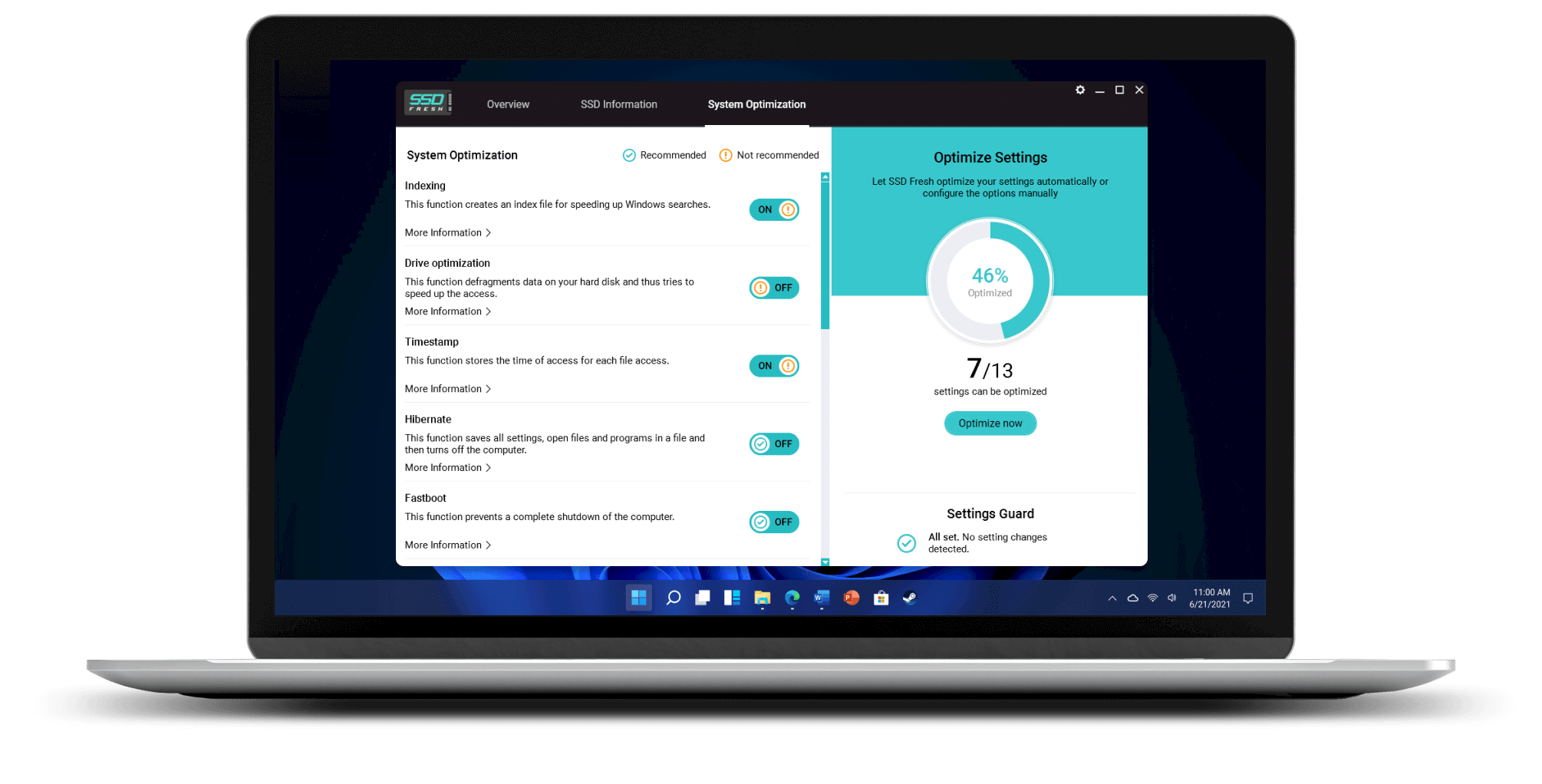
System settings Official SSD Fresh system optimization screen listing Windows settings and manual controls

Inspect every suggested setting before one-click optimization.

The official interface shows individual Windows settings with manual controls. Read the explanation for each item and change one setting at a time so rollback and measurement remain possible.

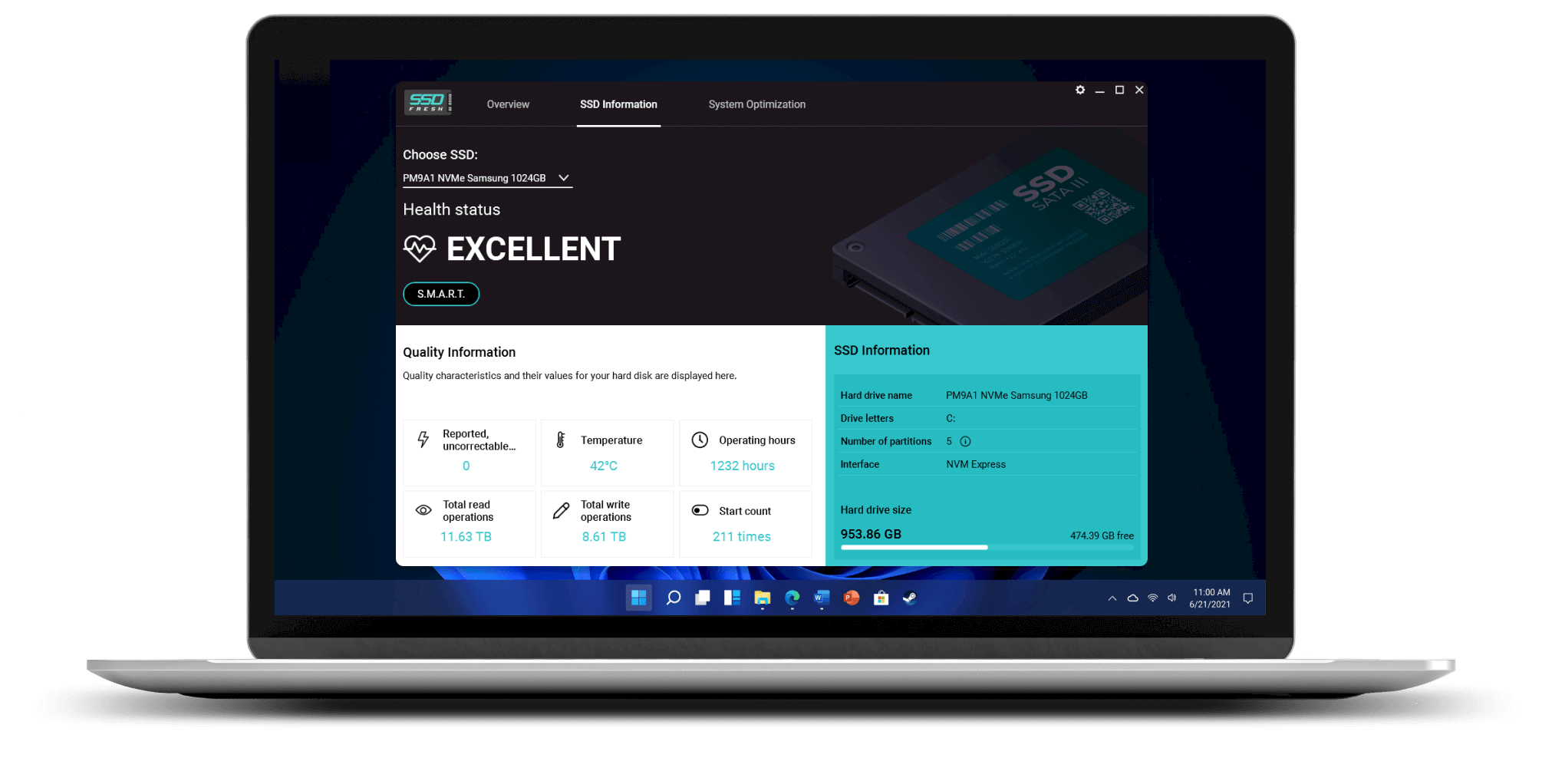
Drive information Official SSD Fresh drive information screen showing temperature, operating hours, reads, writes, and SMART status

Health data is useful only when the field is understood.

The interface surfaces temperature, operating hours, read/write totals, and S.M.A.R.T. status. A green dashboard is not a backup, and a warning should trigger data protection and diagnosis before optimization.

Screenshots: official Abelssoft product gallery, accessed July 15, 2026. Interface details can change with later releases.

Dashboard

Can you see drive condition quickly?

A useful screenshot should show the current drive, temperature, and warning state without making you hunt through menus.

SMART

Does it expose useful health data?

Look for clear S.M.A.R.T. status and drive details, not just a vague green checkmark.

Writes

Can it identify write-heavy activity?

The most useful review video should show whether the tool makes write activity understandable for non-experts.

Changes

Are settings reversible?

Before applying one-click optimization, check whether the tool explains what it will change and whether you can undo it.

FAQ

SSD Fresh questions buyers ask before clicking.

Does SSD Fresh make a PC faster?

Maybe, but that should not be the promise. If the machine is messy or poorly configured, maintenance may help the experience. If the bottleneck is RAM, CPU, heat, malware, or a failing drive, software maintenance will not solve the root problem.

What is the difference between SSD Fresh Free and Plus?

The official page lists donation screens and no background guard as trial limitations. Plus lists at least six months of updates and new versions, email support, and an advertising-free experience. Confirm the current terms because licensing can change.

Is SSD Fresh a replacement for a manufacturer SSD tool?

No. A manufacturer utility can be better for firmware, warranty, and model-specific diagnostics. SSD Fresh is better framed as a guided general Windows SSD maintenance layer.

What does one-click optimization change?

The official interface presents individual Windows settings and allows manual control. Review the explanation for each item, keep a rollback note, and change one setting at a time rather than treating the optimization percentage as a performance score.

Should gamers use SSD Fresh?

Only for general storage upkeep. Do not buy it expecting guaranteed FPS gains, lower ping, or better match outcomes.

Can SSD Fresh prevent data loss?

No. Monitoring may surface warning signs, but it cannot guarantee that a drive will not fail. Keep an independent, tested backup of important files.

What should I check on the retailer page?

Check the current version, OS support, license terms, refund policy, update period, and whether the Plus version features matter to you.

Related decisions

Keep the SSD cluster tight.

These internal links help Google and readers understand the full Windows maintenance cluster.

Slow PC

Before buying hardware

Check whether the slowdown is storage, memory, heat, or startup apps.

Open checklist
Alternatives

SSD Fresh alternatives for Windows

Compare free Windows checks, SSD maker utilities, SMART monitoring, benchmarks, and when SSD Fresh is worth considering.

Compare alternatives
SSD

Health monitoring checklist

Use this before assuming an optimization tool is the right first step.

Open checklist
Privacy

File vault comparison

If your goal is privacy rather than speed, compare file protection tools instead.

Open privacy guide